MT5 automation
Lazy Trader tested results
This section will collect separate tested-results pages by instrument.
The first US500 page is available now. More pages, such as US100, XAU, or EUR, can be added here later.
(!) How trade statistics are counted
MetaTrader's built-in trade statistics counts each PTT as a separate trade. Therefore, when single tests finish, a *.csv file is created in Terminal\Common\Files\ZEN\tester_balance; it can be used to track the real number of trades. The trade count and expectancy shown on the site are calculated by this method and will differ from what MT shows in any case.
Historical results are not a guarantee
Historical results are not a guarantee that the same results will happen in the future. There are no guarantees at all.
Be ready for drawdowns
When working with Lazy Trader, especially with ready-made configs you have not checked yourself, be ready for significant drawdowns.
Risk only what you can lose
Do not risk money you do not have or money you are not ready to lose.
How to use a setup in realtime
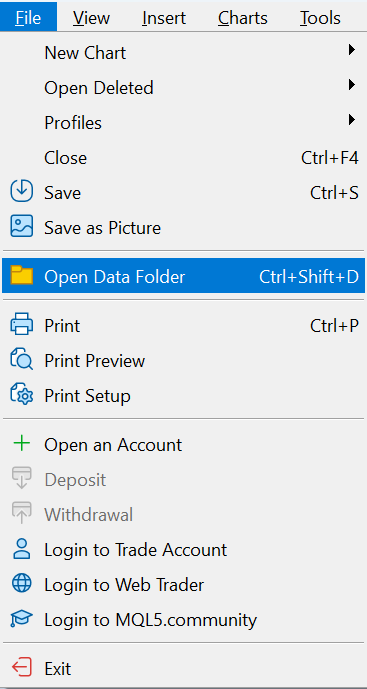
To run a setup in realtime, download the setup you need (plan/preset) and place the file into MT5 MQL5/Files/ZEN/plan_cfg.
- Open the page for the instrument you need and download the setup you want to use.
- Place the file into MT5 MQL5/Files/ZEN/plan_cfg.
- For plan cfg files, use the full path below; USERNAME and the terminal folder on your machine will be different.
Full path for plan cfg: C:\Users\USERNAME\AppData\Roaming\MetaQuotes\Terminal\MANY-RANDOM-SYMBOLS\MQL5\Files\ZEN\plan_cfg
Important: the tester has its own sandbox. If you want this plan to be immediately available in the tester, place the file into Common\Files\ZEN\plan_cfg.
For macOS users, the idea is the same: find where the terminal's AppData physically lives and place the config file into the required folder.
Usually on macOS, the user's folder contains hidden files. The terminal's physical AppData is usually somewhere among them.
- In Finder, press Command + Shift + G and enter /Users, then open the user folder, for example /Users/Georg/.
- Inside the user folder, press Command + Shift + . to show hidden files and folders.
- Find the terminal folder among them. Example path: Libraries / Application Support / MetaTrader 5 / Bottles / MetaTrader5 / drive_c / Program Files / MetaTrader 5 / MQL5 / Files /.
- Your path may differ, for example: user / Library / Applications / net.metaquotes / drive_c / Program Files / MetaTrader / MQL / Files /. For Lazy Trader plan cfg, continue to ZEN/plan_cfg.
New setups and updates
New setups will appear as they are ready. Subscribe to the channel so you do not miss information about them and other important updates: