Magic Entry / Theme lab
MT5 ARGB Color Picker
Tune the interface theme, check contrast, and export a ready AppTheme block.
Click an element, adjust color and opacity, then download the ready .mqh file.
Workbench
Build the theme and verify the interface immediately
Palette, Magic Entry elements, line preview, zones, tickets, and risk panel stay inside one working layer.Active color
Selected: line_order_entry
Alpha 0 is fully transparent and 255 is opaque. Color and alpha persist together; selection works with mouse or keyboard.
Elements
Position zones and lines
TP | RR:2.3 | $:120 | Vol:0.70
PT-1 | RR:1.4 | $:62 | Vol:0.35
CNL
ENTRY | Vol:0.70
PS-1 | RR:0.5 | $:-26 | Vol:0.35
SL MAIN | RR:1.0 | $:-52 | Vol:0.70
BE-TRG | RR:1.2
BE-OFST | PTS:20
TR-START | RR:0.8
TR-GAP | PTS:35
TT-START | RR:1.6
TT-GAP | PTS:18
Trailing stop uses line_be_trigger/line_be_offset. Trailing take uses line_ttp.
Order panel
GUARD
ALL
LONG +1.8RR | 2h 12m
SHORT -0.9RR | 45m
oBUY LIMIT 0.35
Use this to check pos_up/down colors and panel background.
Risk panel
LIMIT
MARKET
%
2.5
^
v
Panel mirrors button and input styling.
Hint canvas
MARKET (ESC)
OK · 0.60 VOL
MARKET (ESC)
REDUCED (LOW MARGIN) · 0.60 VOL
MARKET (ESC)
NO VOLUME (LOW MARGIN)
Statuses are shown together for color setup only; the terminal displays one current status.
Export theme
Exports exact ColorToARGB values. A valid non-empty file wins; if it is missing, empty, or invalid, the EA uses Custom Theme inputs. This is the fallback path for macOS/ARM.
Export route
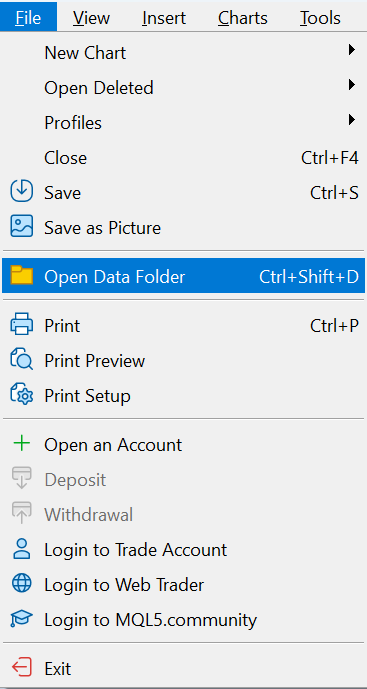
How to quickly find where to place the config file?
- Open the MetaTrader 5 platform. In the top menu select "File" -> "Open Data Folder". In the opened window open the MQL5 folder.
- Copy the downloaded file to the "Files" folder.
Full path example: C:\Users\USERNAME\AppData\Roaming\MetaQuotes\Terminal\MANY-RANDOM-SYMBOLS\MQL5\Files\
For macOS users, the idea is the same: find where the terminal's AppData physically lives and place the config file into the required folder.
Usually on macOS, the user's folder contains hidden files. The terminal's physical AppData is usually somewhere among them.
- In Finder, press Command + Shift + G and enter /Users, then open the user folder, for example /Users/Georg/.
- Inside the user folder, press Command + Shift + . to show hidden files and folders.
- Find the terminal folder among them. Example path: Libraries / Application Support / MetaTrader 5 / Bottles / MetaTrader5 / drive_c / Program Files / MetaTrader 5 / MQL5 / Files /.
- Your path may differ, for example: user / Library / Applications / net.metaquotes / drive_c / Program Files / MetaTrader / MQL / Files /. For Color Picker, use the Files folder.